Element References
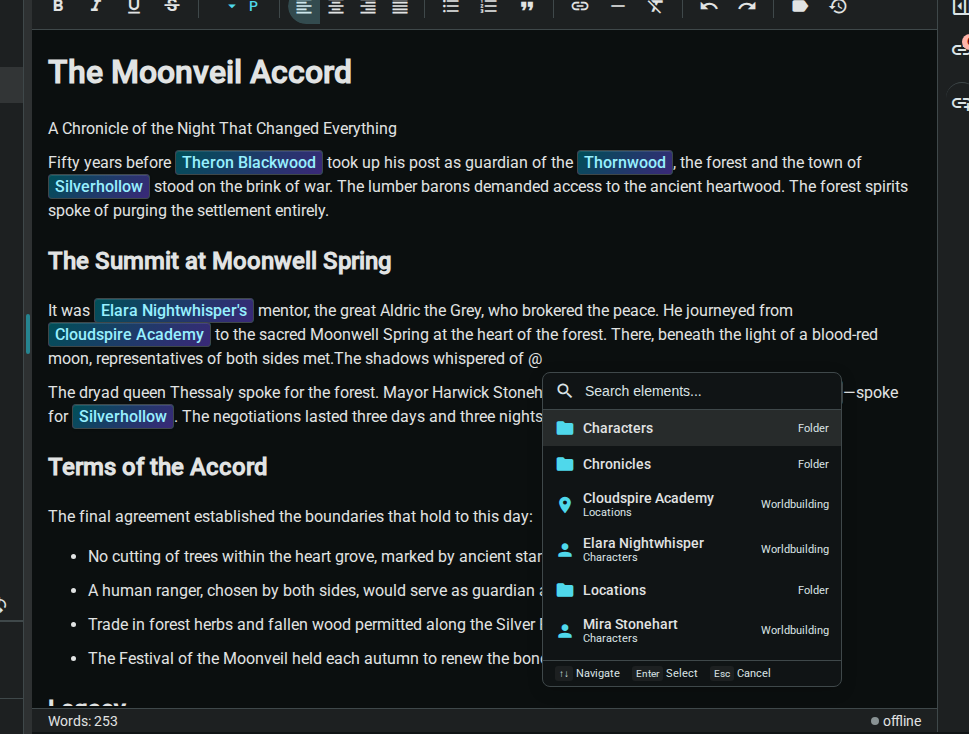
Element references let you create links between your story content. Use the @ symbol to reference any element from anywhere in your project.
What Are Element References?
Element references are inline links to other elements:
- Type
@to trigger the reference popup - Search for any element in your project
- Insert a styled link to that element
- Navigate between connected content
Quick Start
- Type
@in any document - Start typing to search for an element
- Select from the dropdown or press Enter
- A styled link is inserted into your text
Why Use Element References?
Track Element Appearances
References stay visible inline in the source document, and referenced worldbuilding elements show incoming reference backlinks in their Relationships section:
- Inline references: Elements the current document links to
- Backlinks: Other documents and elements that reference a worldbuilding entry
Navigate Your World
Click any element reference to jump directly to that element's page. Build a web of interconnected worldbuilding.
Maintain Consistency
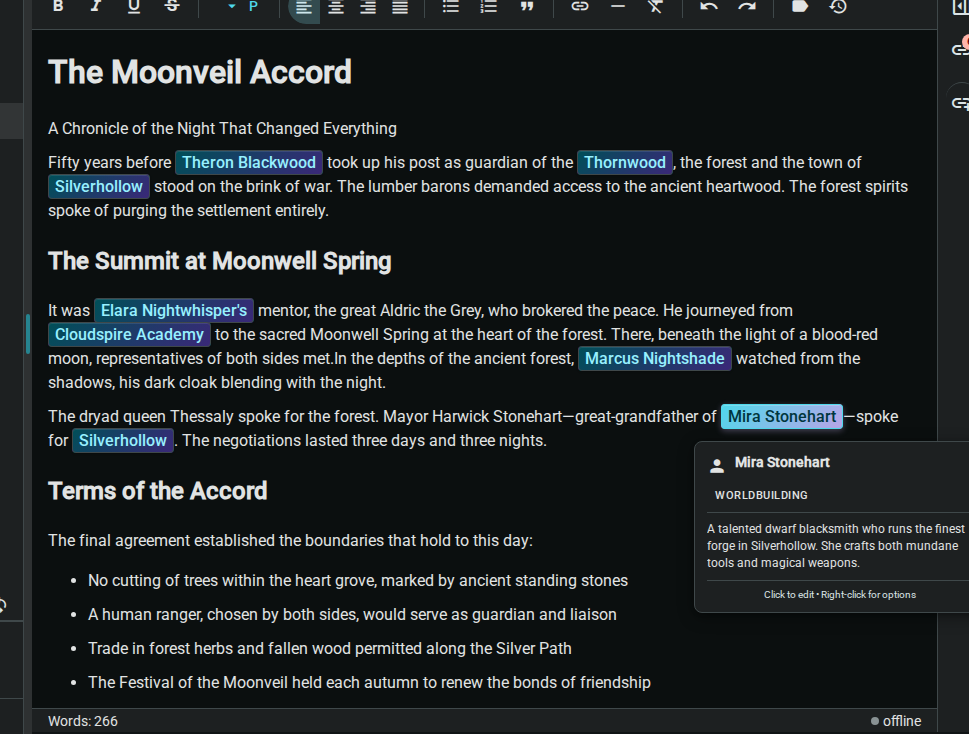
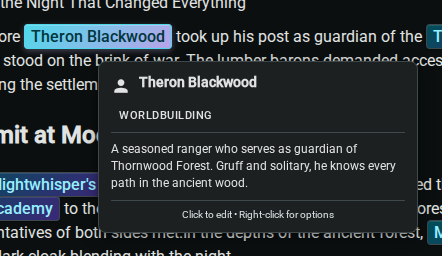
When you hover over an element reference, a tooltip shows key information about that element. Quickly verify details without leaving your current document.
Using the @ Popup
Triggering the Popup
Type @ anywhere in a document:
- In prose content
- In worldbuilding fields
- In notes
The popup appears immediately with suggestions.
Searching
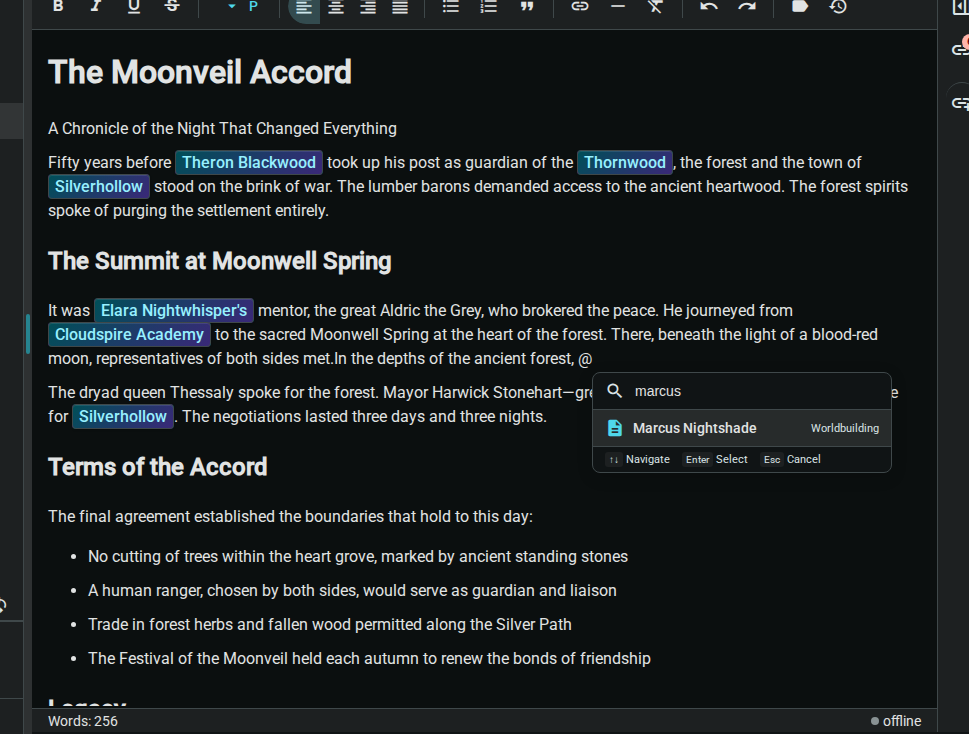
The popup shows relevant elements by default. Start typing to filter:
- Type
@Elenato find elements named Elena - Type
@Tavernto find elements containing "Tavern" - Results are ranked by relevance and recency
Keyboard Navigation
| Key | Action |
|---|---|
↑ ↓ | Navigate through results |
Enter | Select highlighted result |
Escape | Close popup without selecting |
Tab | Select and continue typing |
Element Type Icons
The popup shows icons based on the element's type:
| Icon | Element Type |
|---|---|
| 📄 | Document |
| 📁 | Folder |
| ✨ | Worldbuilding element |
Inserting References
Basic Insertion
- Type
@and search - Select an element
- The reference appears as styled text
- Continue typing normally
Reference Display
References appear as:
- Distinctly styled (usually colored/highlighted)
- Clickable links
- Show element name by default
Editing References
Change Display Text
By default, the element's name is shown. To use custom text:
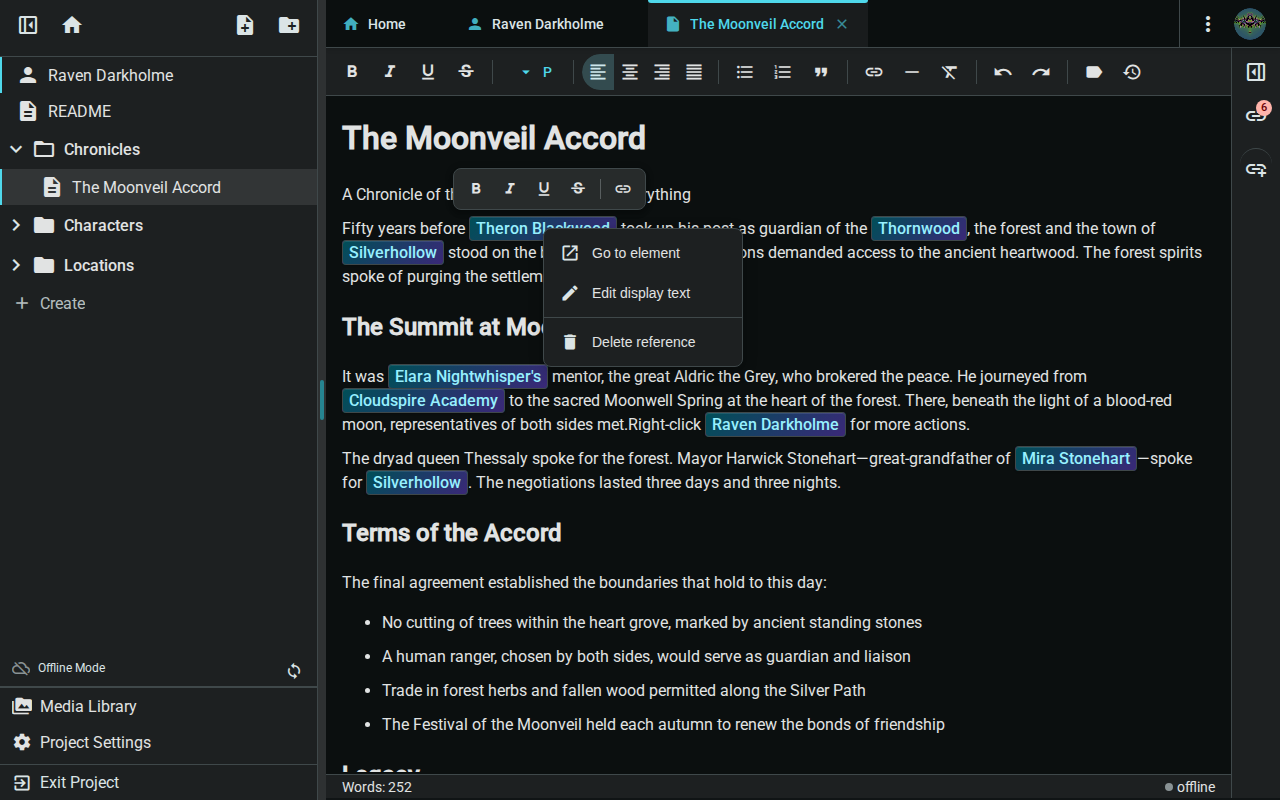
- Right-click the element reference
- Select "Edit Display Text"
- Enter your preferred text
- Click Save or press Enter
Example: Change @Elena Blackwood to display as just Elena or the sorceress.
Remove a Reference
To remove an element reference:
- Place your cursor at the reference
- Use Backspace or Delete
- The reference is removed like any text
Or:
- Select the reference
- Press Delete or type replacement text
Viewing References
In the Relationships Section
Open a referenced worldbuilding element to see:
Backlinks (Incoming)
- Documents that mention this element
- Click to navigate to those documents
Reference Counts
See how many times an element is referenced:
- On element cards in worldbuilding views
- In the Relationships section
Tooltip Preview
Hover over a reference to see:
- Element type and name
- Brief description or summary
- Quick facts from the profile
Previous: Elements & Templates — Create structured worldbuilding entries. Next: Relationships - Define semantic connections between elements.