Relationships
Relationships define meaningful connections between your story elements—family ties, alliances, ownership, or spatial connections. Element references are also relationships, automatically created when you mention an element in a document.
Manual vs. Automatic Relationships
| Feature | Element References (@mentions) | Manual Relationships |
|---|---|---|
| Creation | Automatic when typing @ | Explicit via dialog |
| Display | Inline links in text | Listed in the Relationships section |
| Backlinks | Yes, on the referenced worldbuilding element | Yes, with inverse label |
| Types | Generic "references" | Familial, Social, Spatial, etc. |
Quick Start
- Open any worldbuilding element
- Open the Relationships section in the element navigation
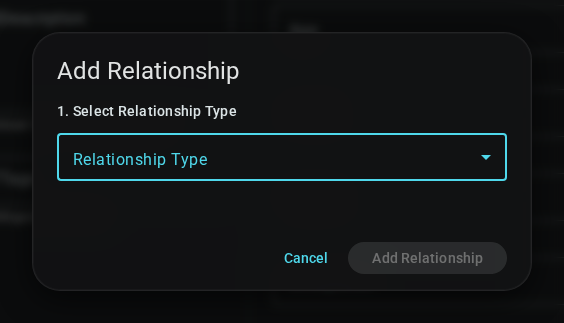
- Click "Add Relationship" at the top of the section
- Select a relationship type (e.g., "Parent", "Sibling", "Located In")
- Search and select the target element
- Click Create
The Relationships Section
When you open a worldbuilding element, the Relationships section shows all connections for that element.
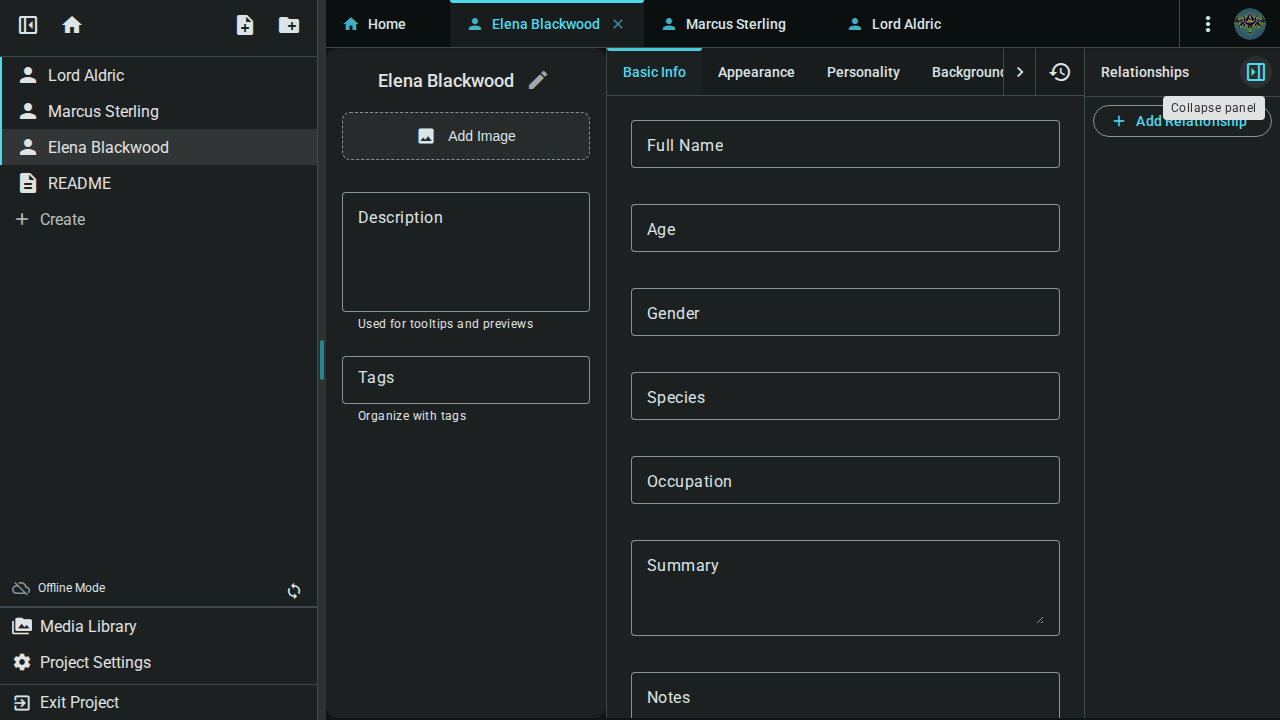
Panel Structure
- Add Relationship button at the top
- Relationship type sections (e.g., "Parent", "Child of", "Sibling")
- Each type expands/collapses independently
- Shows count of relationships in that category
- Lists all relationships of that type
Relationship Cards
Each relationship displays as a card showing:
- Element icon based on the element's template
- Element name as a clickable link
- Delete button to remove the relationship
Click any relationship card to navigate directly to that element.
Bidirectional Nature
When you create a relationship, it appears on both elements:
- Outgoing: Shows on the source element with the primary label
- Incoming (Backlink): Shows on the target element with the inverse label
Example: If you mark "Marcus" as the Parent of "Elena":
On Marcus's page, you see the outgoing relationship:

On Elena's page, you see the incoming backlink:

Relationship Types
All relationship types are defined per-project in Project Settings. Demo templates may include pre-configured types to help you get started.
Two types are created automatically the first time you use them: canvas-pin ("Has pin on canvas") when you link a canvas pin to an element, and canvas-area ("Has mapped area") when you link a shape as a region. They appear alongside your own types and show which maps an element is placed on.
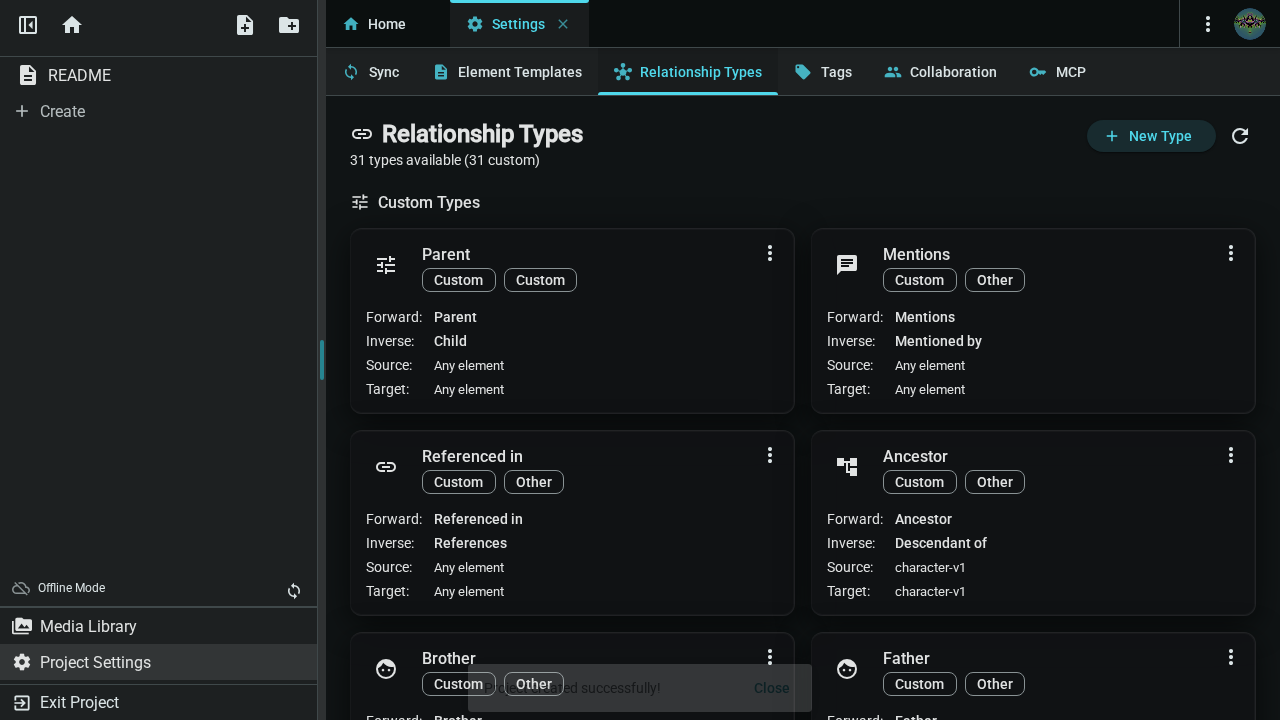
Creating a Relationship Type
- Go to Project Settings → Relationship Types
- Click "New Type"
- Use the full editor to configure the type (see below)
- Click Create — the type is saved automatically
Editing a Relationship Type
Click the Edit (pencil) button on any type card to open the full editor with all existing values pre-filled.
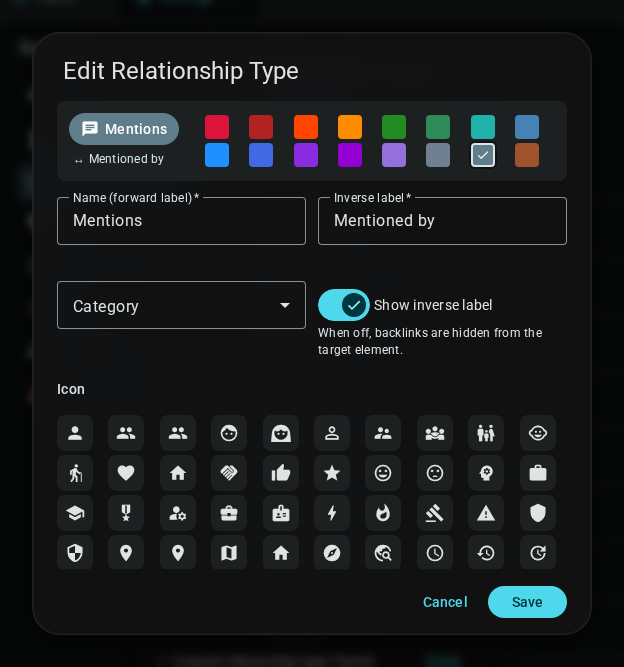
Relationship Type Editor
The editor lets you configure every aspect of a relationship type:
| Field | Description |
|---|---|
| Name | Primary (outgoing) label, e.g. "Parent", "Mentor", "Located In" |
| Inverse label | Backlink label shown on the target element, e.g. "Child of", "Student of" |
| Show inverse | Toggle whether backlinks appear on the target element |
| Category | Organises types for sorting — Family, Social, Professional, Location, Timeline, Ownership, Reference, or Other |
| Icon | Choose from a grid of Material icons (same picker as Tags) |
| Color | Choose from 16 preset colors (same palette as Tags) |
| Source — allowed element types | Which element schemas can use this relationship as the source. Toggle "Any element type" for no restriction, or select specific types. |
| Source — max relationships | Optional cap on how many of this type a source element can have |
| Target — allowed element types | Which element schemas can be the target. Same options as source. |
| Target — max relationships | Optional cap on the target side |
Duplicating a Relationship Type
Click the Duplicate button on any type card. The full editor opens pre-filled with the original type's data (name gets a "(Copy)" suffix). Modify anything you need, then click Create to save the copy.
Deleting a Relationship Type
Click the Delete button and confirm. Deleting a type does not remove existing relationships that use it — those remain but will no longer be grouped under a named type.
Common Patterns
| Category | Primary → Inverse |
|---|---|
| Family | Parent ↔ Child of, Sibling ↔ Sibling of, Spouse ↔ Spouse of |
| Social | Friend ↔ Friend of, Mentor ↔ Student of, Employer ↔ Employee of |
| Location | Located In ↔ Contains, Adjacent To ↔ Adjacent To |
| Ownership | Owns ↔ Owned By, Member Of ↔ Has Member, Created By ↔ Creator of |
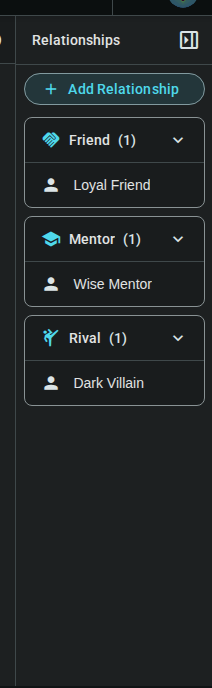
Multiple Relationships
An element can have many relationships of different types:
Managing Relationships
Deleting Relationships
To remove a relationship:
- Find the relationship card in the Relationships section
- Click the Delete (trash) button
- Confirm the deletion
The relationship is removed from both elements.
Changing a Relationship
To change a relationship's type or target:
- Delete the existing relationship
- Create a new one with the correct type and target
Previous: Element References — Link elements with @mentions. Next: Relationship Charts — Visualize connections as interactive graphs.