Media Library
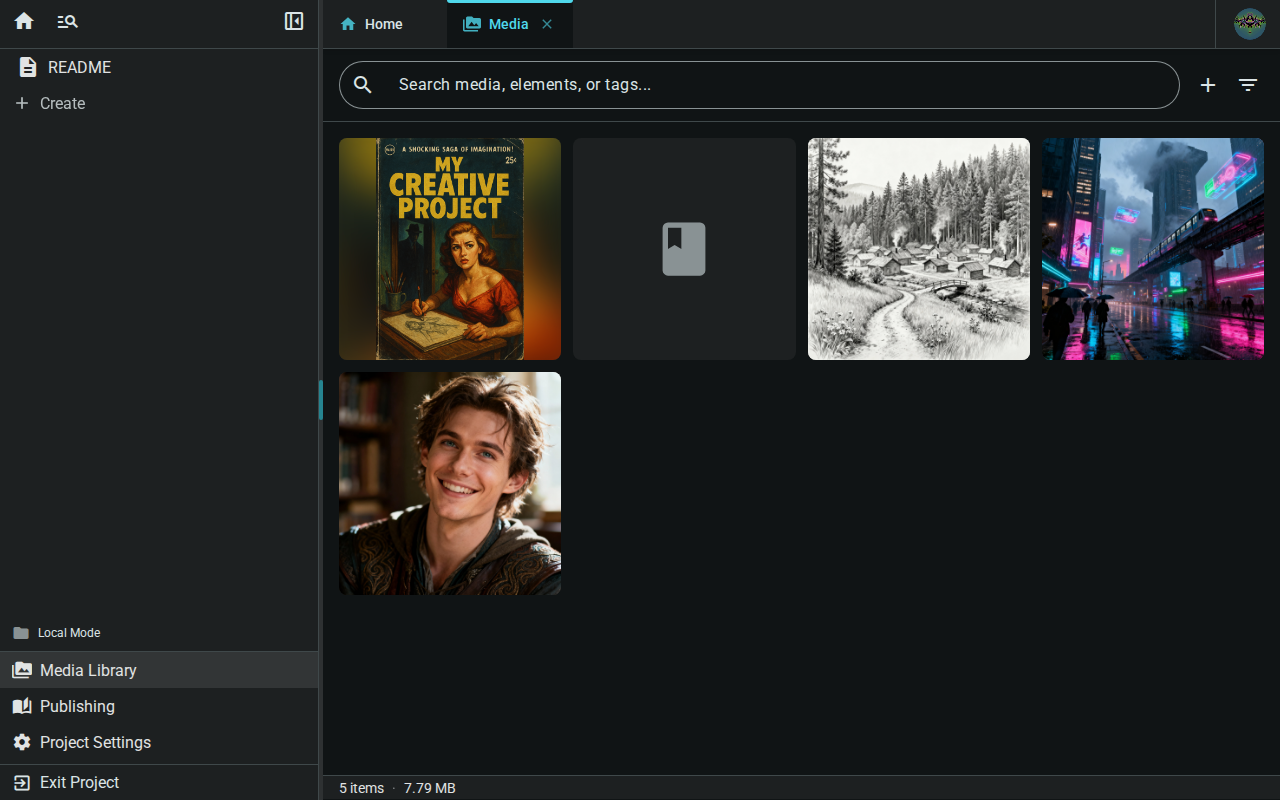
The Media Library shows all images and files associated with your project. Access it from the sidebar Media Library button when inside a project.
What's in the Library
The library displays media from several sources:
| Category | Description |
|---|---|
| Cover | Your project's cover image |
| Generated | AI-generated images (if enabled) |
| Inline Images | Images pasted or dropped into documents |
| Published | Exported files (EPUB, PDF, HTML, Markdown) |
| Other | Any other stored media |
A status bar at the bottom shows the current item count and total storage size.
How Media Gets Here
Images are added to the library automatically when you:
- Paste or drop images into the editor — saved automatically
- Set a project cover in project settings
- Generate images with AI (if configured)
- Export your project as EPUB, PDF, HTML, or Markdown
- Upload directly using the + button in the header
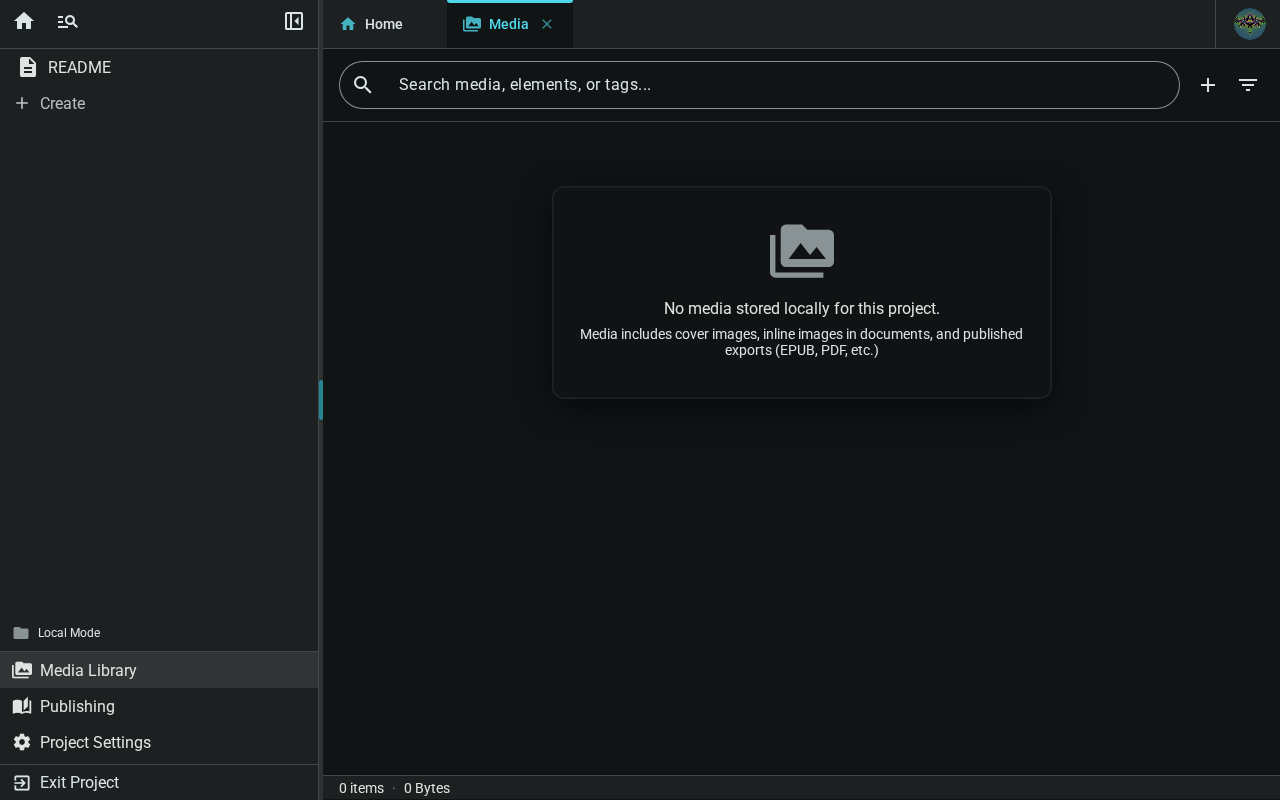
When the library is empty, you'll see a placeholder card explaining what kinds of media appear here.
Searching
A search bar sits at the top of the media tab. Type a keyword to filter items by filename or AI generation prompt — the grid updates instantly. Click the × button to clear the search.
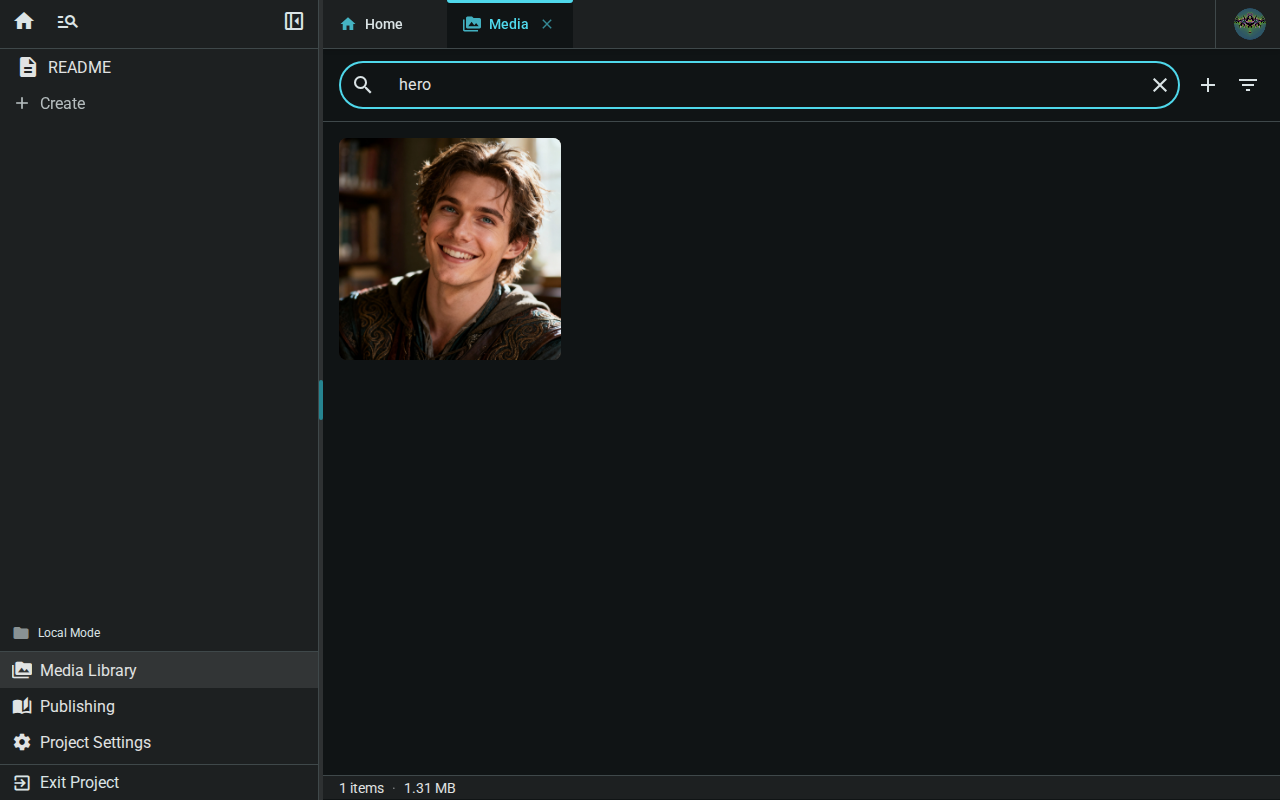
Search works alongside filters — apply filters first, then search within the filtered results.
Filtering
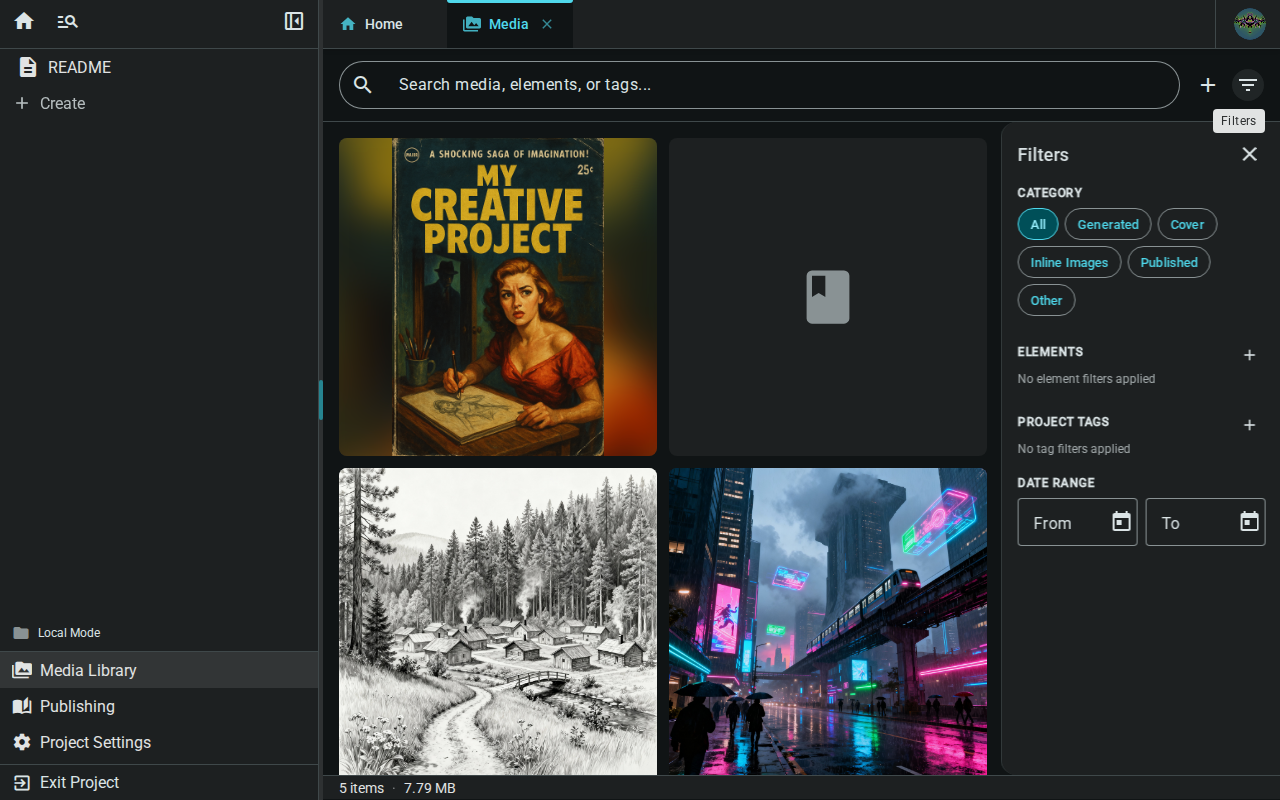
Click the filter button (funnel icon) in the header to open the filter panel. The panel slides in from the right and offers several filter dimensions:
Category
Select a media category to show only items of that type:
- All — Everything
- Generated — AI-generated images
- Cover — Project cover image
- Inline Images — Images embedded in documents
- Published — Export files
- Other — Uncategorized items
Elements
Filter by worldbuilding elements that have been tagged on media. Click + to add element filters.
Tags
Filter by project tags assigned to media. Click + to add tag filters.
Date Range
Narrow results to media created within a specific date range.
A badge on the filter button shows how many filters are active. Click Clear All in the panel to reset all filters at once.
Managing Media
Each media item appears as a card in the grid. Hover over a card to reveal the action overlay.
View
Click an image card to open the full-size image viewer.
Tag
Click the tag icon (top-left of a card) to associate the media with worldbuilding elements or project tags. Tagged media appears on the element's media panel in the worldbuilding editor, making it easy to keep reference images alongside your world's characters, locations, and items.
Download
Click the download icon to save an item to your device.
Delete
Click the delete icon and confirm to remove an item. The confirmation dialog shows where the image is used (cover image, documents, canvas, element tags) so you can understand the impact before deleting.
Deleting an inline image removes it from the library. Documents referencing it will show broken image placeholders.
Cover images cannot be deleted from this view — remove or replace them through project settings.
Worldbuilding Media Panel
When editing a worldbuilding element, a Media panel shows all images tagged with that element. From this panel you can:
- Tag More — Open a multi-select dialog to tag additional images from your library
- Remove — Untag an image from the element
- View — Click a thumbnail to open the full-size viewer
This keeps reference images close to the elements they belong to.
AI Image Generation
If your instance has AI image generation enabled, click the + button in the header and choose Generate with AI to open the image generation dialog. See AI Image Generation for details.
When generation is in progress, active jobs appear at the top showing status (queued, generating, saving). Completed images are added to the library automatically.
Local-First Storage
Like all Inkweld data, media uses a local-first architecture:
- Images are stored in your browser's IndexedDB immediately
- When connected to a server, images sync automatically
- You can work offline—images are available without network access
- Changes sync bi-directionally when you reconnect
This means your images are always accessible, even without an internet connection.
Next: Cover Images — Add a cover image to your project.