Choosing Your Mode
When you first open Inkweld, you'll see the mode selection screen. This lets you choose how you want to use the application.
:::tip Pre-Configured Instances Some Inkweld instances are pre-configured to automatically start in server mode. If your instance has a fixed server URL configured in its build, you'll skip this screen and go directly to the login page. :::
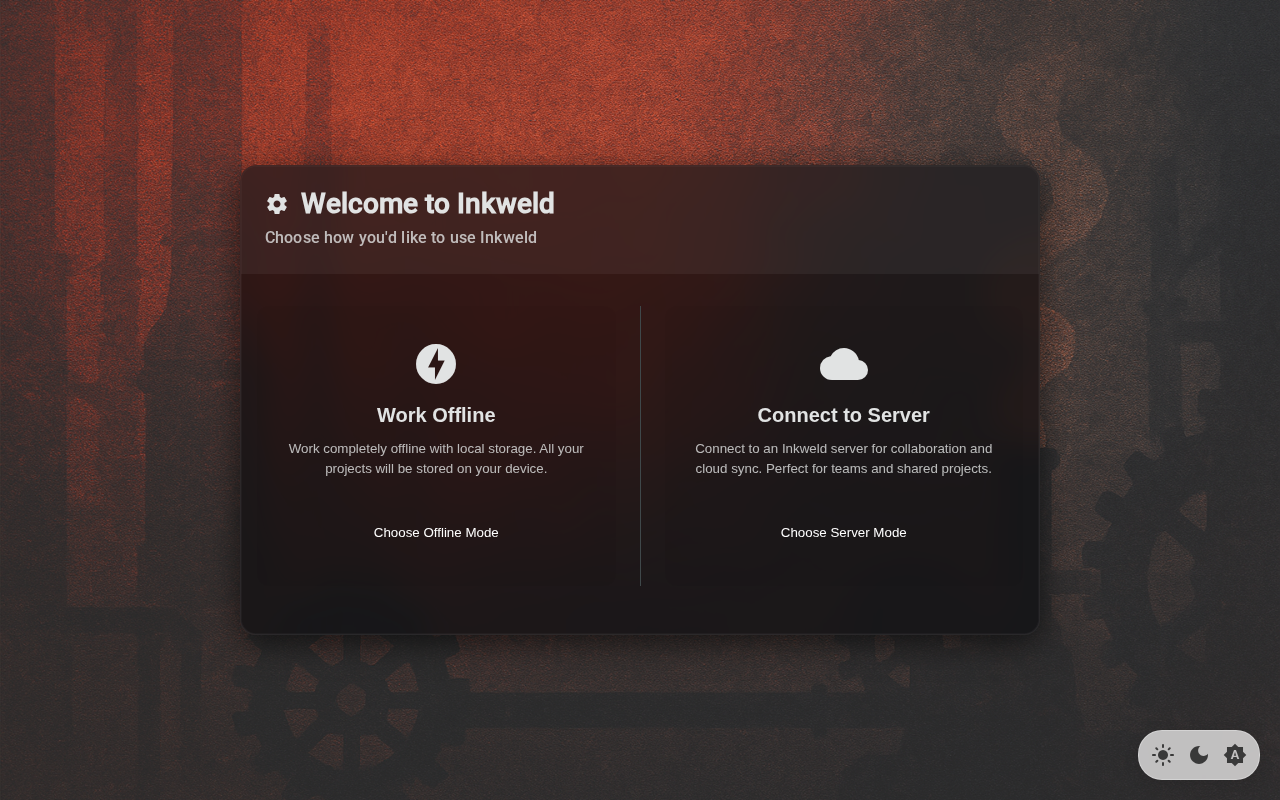
Two Ways to Use Inkweld
Offline Mode
Work completely offline with local storage.
In offline mode:
- All your data is stored in your browser using IndexedDB
- No server connection required — works without internet
- Projects can be exported as archive files for backup or sharing
- You can later connect to a server to sync your data
This is ideal for:
- Writers who want complete privacy
- Working without internet access
- Testing Inkweld before setting up a server
Server Mode
Connect to an Inkweld server for collaboration and sync.
In server mode:
- Your data syncs to a server for backup and access from multiple devices
- Real-time collaboration with other users
- User accounts with authentication
- Admin features for managing users and settings
This is ideal for:
- Writing teams and collaborators
- Accessing projects from multiple devices
- Organizations wanting centralized data management
Setting Up Offline Mode
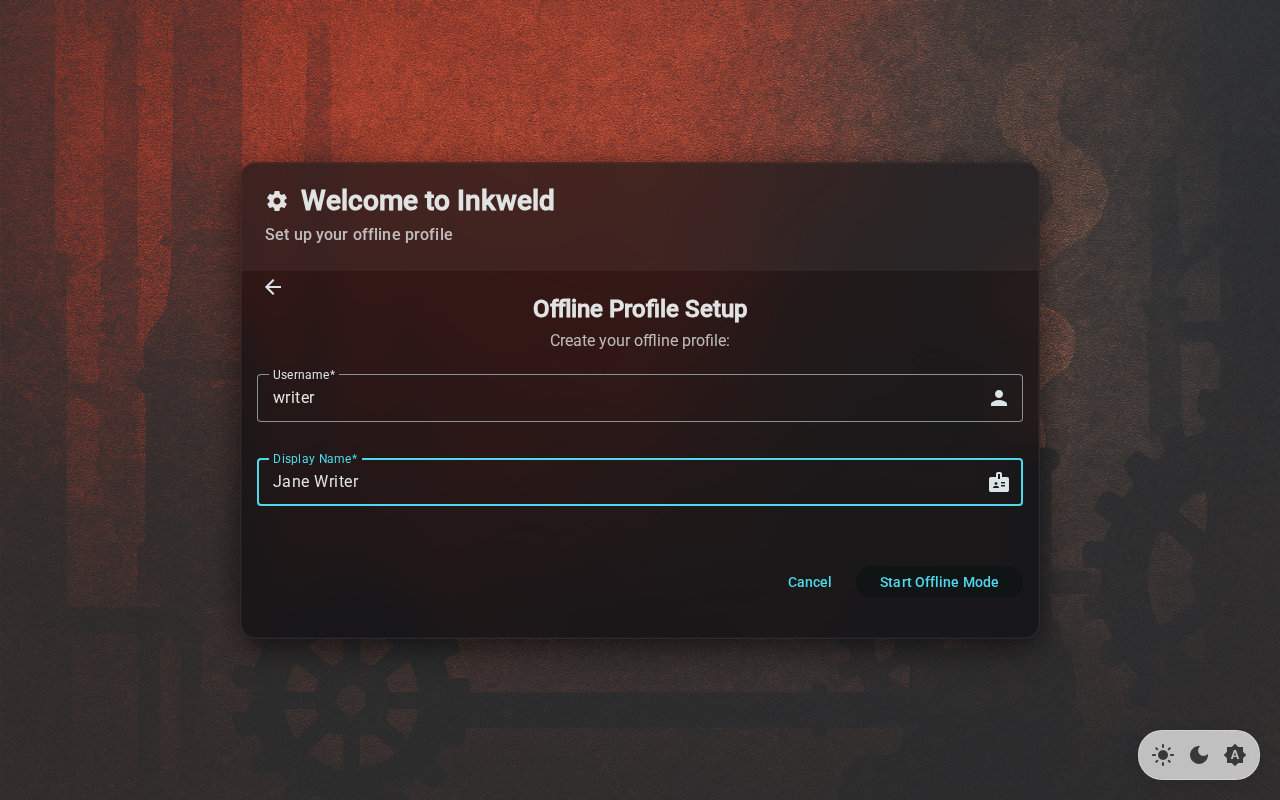
If you choose Work Offline, you'll create a local profile:
| Field | Description |
|---|---|
| Username | A short identifier (used in project URLs) |
| Display Name | Your name as shown in the app |
Click Start Offline Mode to begin. Your profile is saved locally and you'll be taken to your bookshelf.
:::info Data Storage In offline mode, your projects are stored in your browser's IndexedDB. Clearing browser data will remove your projects, so use the Export feature to create backups. :::
Connecting to a Server
If you choose Connect to Server, you'll enter your server's URL:
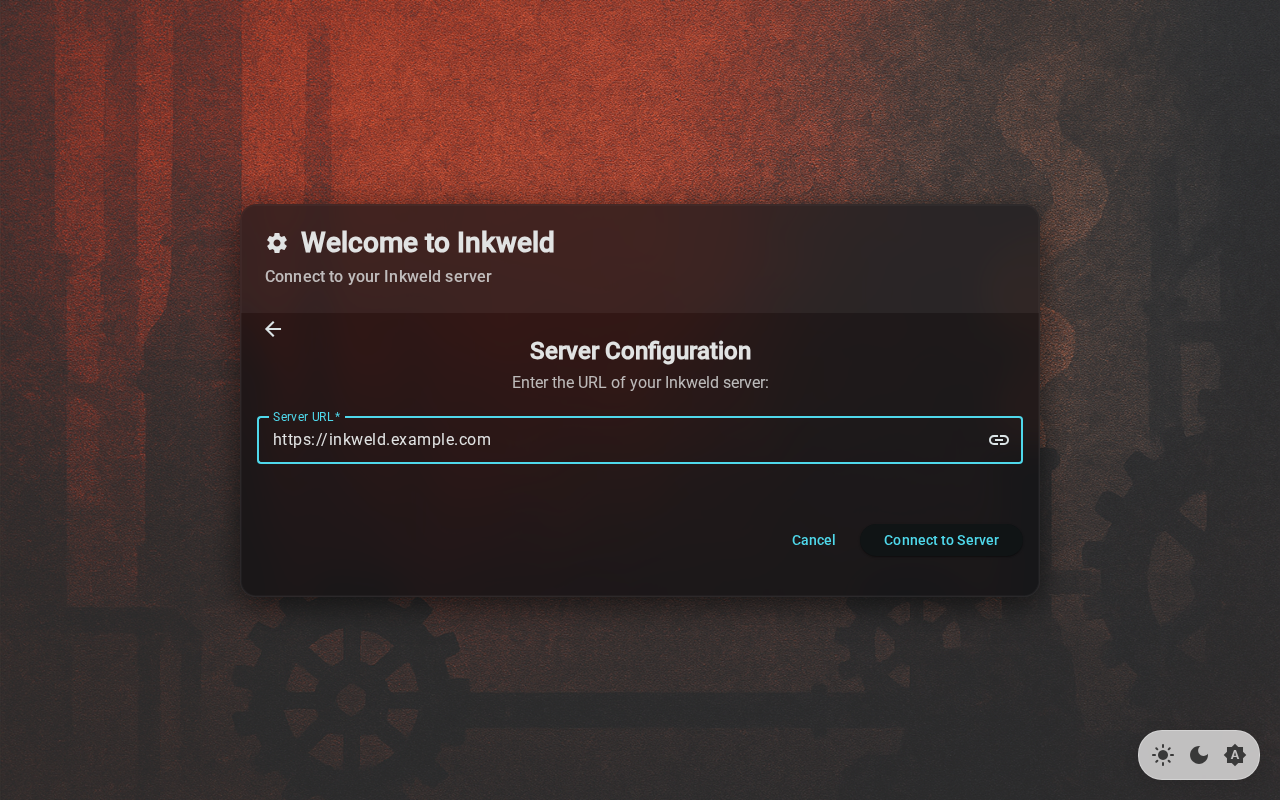
Enter the full URL of your Inkweld server (e.g., http://localhost:8333 for local development or https://inkweld.example.com for a hosted server).
Click Connect to Server to test the connection. If successful, you'll be redirected to the login or registration page.
:::tip Hosted Deployments If you're accessing a hosted Inkweld deployment (like one on Cloudflare Workers), the server connection is configured automatically — you won't see this setup screen. :::
Switching Modes Later
From Offline to Server
If you start in offline mode and later want to sync to a server:
- Go to Settings (user menu → Settings)
- Look for the Connection section
- Enter your server URL and connect
Your local projects can then be synced to the server.
Resetting Your Configuration
To start fresh and see the mode selection again:
- Navigate to
/resetin your browser - Choose what to reset (configuration, projects, or everything)
- After reset, you'll see the setup screen again
Next: Account Setup — Create your account on a server, or skip to The Bookshelf if using offline mode.