The Editor
Inkweld's editor is built for long-form creative writing. It combines the simplicity of a word processor with features for collaborative storytelling.
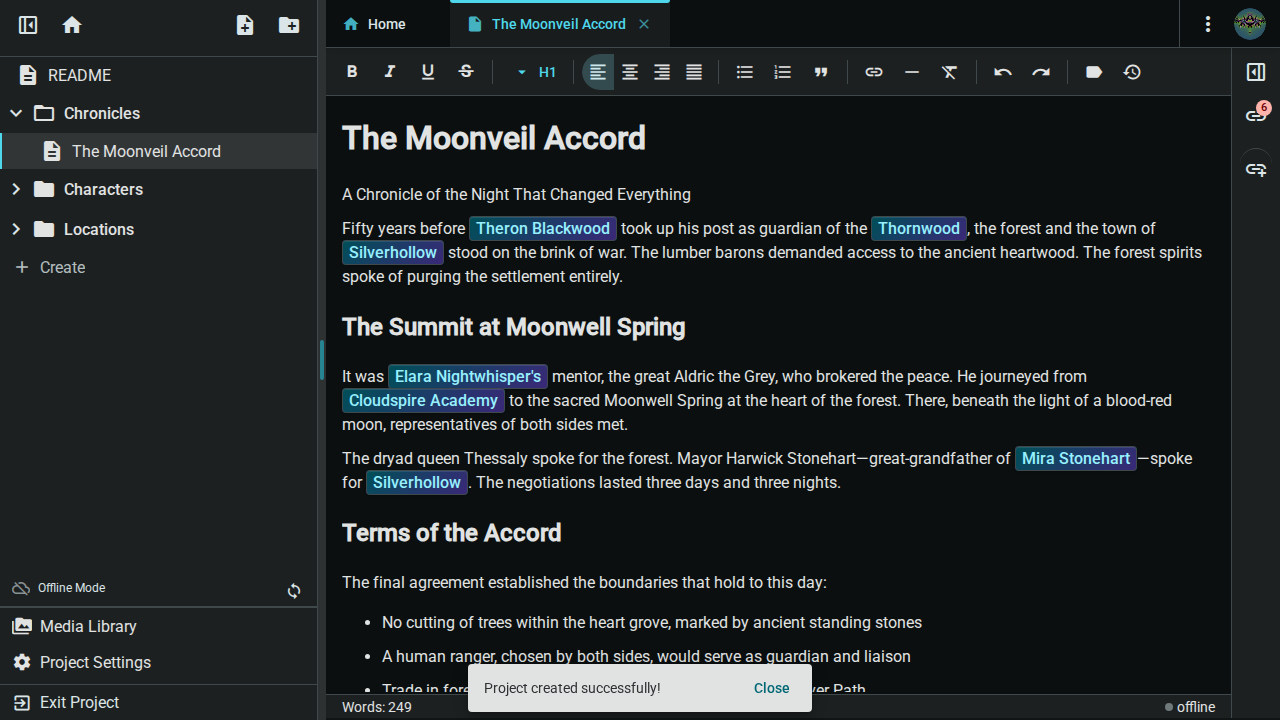
Editor Layout
The editor occupies the center of your project workspace:
- Toolbar: Formatting buttons at the top
- Writing Area: Where you type your content
- Status Bar: Word count and sync status at the bottom
- Meta Panel: Relationships and backlinks on the right (collapsible)
Basic Writing
Simply click in the editor and start typing. The editor behaves like any word processor:
- Text wraps automatically
- Press Enter to create a new paragraph
- Press Backspace to delete characters
- Select text with click-and-drag or keyboard shortcuts
Autosave
Your work saves automatically:
- Changes sync in real-time with the server
- No "Save" button needed
- The status bar shows sync state:
- Synced: Saved and synced
- Syncing: Save in progress
- Offline: Working offline (will sync when reconnected)
The Toolbar
The formatting toolbar provides quick access to styling options.
Text Formatting
| Button | Shortcut | Effect |
|---|---|---|
| B | Ctrl/Cmd + B | Bold |
| I | Ctrl/Cmd + I | Italic |
| U | Ctrl/Cmd + U | Underline |
| — |
Paragraph Styles
Click the paragraph style dropdown to choose:
- Paragraph (normal text)
- Heading 1 through Heading 6
Text Alignment
| Button | Effect |
|---|---|
| Left align | Align text left (default) |
| Center | Center text |
| Right align | Align text right |
| Justify | Justify text |
Lists and Quotes
| Button | Effect |
|---|---|
| Bullet list | Create a bulleted list |
| Numbered list | Create a numbered list |
| Quote | Create a block quote |
Insert and Editing
| Button | Effect |
|---|---|
| Link | Insert or edit a hyperlink |
| Table | Insert a table, or edit the rows and columns of the one you are in |
| Horizontal rule | Insert a scene break line |
| Clear formatting | Remove all formatting from selection |
| Undo | Undo last action (Ctrl/Cmd + Z) |
| Redo | Redo undone action (Ctrl/Cmd + Y) |
Document Tools
| Button | Effect |
|---|---|
| Tags | Manage tags for this document |
| Snapshots | View and create document snapshots |
Markdown Shortcuts
The editor supports Markdown-style shortcuts for fast formatting.
At Line Start
Type these at the beginning of a line:
| Type | Result |
|---|---|
# | Heading 1 |
## | Heading 2 |
### | Heading 3 |
- or * | Bullet list item |
1. | Numbered list item |
> | Block quote |
--- | Horizontal rule |
Inline Formatting
Wrap text with these characters:
| Type | Result |
|---|---|
**text** | Bold |
*text* | Italic |
Text Selection
Mouse Selection
- Click and drag: Select a range of text
- Double-click: Select a word
- Triple-click: Select a paragraph
Keyboard Selection
- Shift + Arrow keys: Extend selection character by character
- Ctrl/Cmd + Shift + Arrow: Select word by word
- Shift + Home/End: Select to start/end of line
- Ctrl/Cmd + A: Select all content
Undo and Redo
The editor maintains full edit history:
- Undo:
Ctrl/Cmd + Z— Reverse the last action - Redo:
Ctrl/Cmd + YorCtrl/Cmd + Shift + Z— Restore undone action
Copy, Cut, and Paste
Standard clipboard operations:
| Action | Shortcut |
|---|---|
| Copy | Ctrl/Cmd + C |
| Cut | Ctrl/Cmd + X |
| Paste | Ctrl/Cmd + V |
| Paste without formatting | Ctrl/Cmd + Shift + V |
Find and Replace
Use Find and Replace to locate and optionally replace text within the current document.
Opening Find
Press Ctrl/Cmd + F to open the find bar at the top of the editor.
Searching
- Type your search query in the find input
- Matches are highlighted in the document as you type
- The match counter shows your position (e.g., "2 of 5")
- The current match is highlighted distinctly from other matches
Navigating Matches
| Action | Shortcut / Button |
|---|---|
| Next match | Enter or click ↓ button |
| Previous match | Shift + Enter or click ↑ button |
| Close find bar | Escape or click × button |
Case Sensitivity
Click the Aa button to toggle case-sensitive matching. When enabled, "Hello" and "hello" are treated as different words.
Replacing Text
- Click the expand button (▶) on the left to reveal the replace row
- Type replacement text in the replace input
- Click the replace button to replace the current match and advance to the next
- Click the replace all button to replace every match at once
| Action | Shortcut |
|---|---|
| Replace current match | Enter in replace input |
| Replace all matches | Shift + Enter in replace input |
Zen Mode
For distraction-free writing, use Zen Mode:
- Click the More menu (⋮) in the toolbar
- Select Toggle Zen Mode
- The editor goes fullscreen with minimal UI
- Click the × button or press Escape to exit
Zen Mode hides the project tree, tabs, and other UI elements so you can focus on writing.
Word Count
The status bar at the bottom of the editor shows the current word count. This updates as you type.
Mobile View
On mobile devices, the editor adapts to your screen:
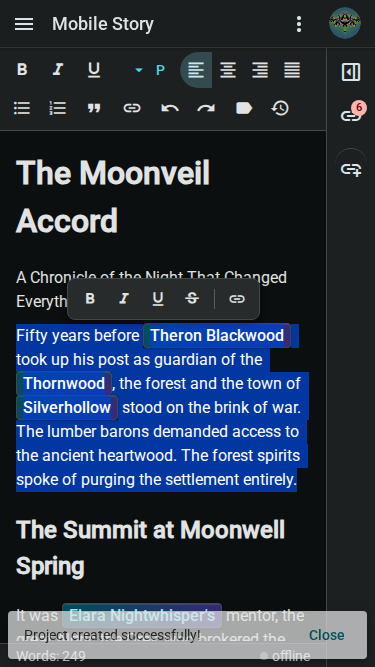
The toolbar shows essential actions, and you can swipe to access the project tree.
Next: Keyboard Shortcuts - Master efficient editing with keyboard commands.