Customizing Output
Each publish plan has its own metadata, style, and content options. Two plans on the same project can produce a polished paperback PDF and a clean reflowable EPUB without stepping on each other.
Metadata
Metadata appears in the generated file's properties and, for EPUB, in e-reader displays.
| Field | Purpose |
|---|---|
| Book Title | Appears as the document/book title |
| Author | Your name or pen name |
| Language | Content language code (e.g., "en", "es") |
| Description | Summary or blurb (used in EPUB metadata) |
Fill these in the Book Metadata section of your publish plan.
Style
The Style section controls typography and layout for HTML, EPUB, and PDF exports. (Markdown ignores visual styling — it's a semantic format.)
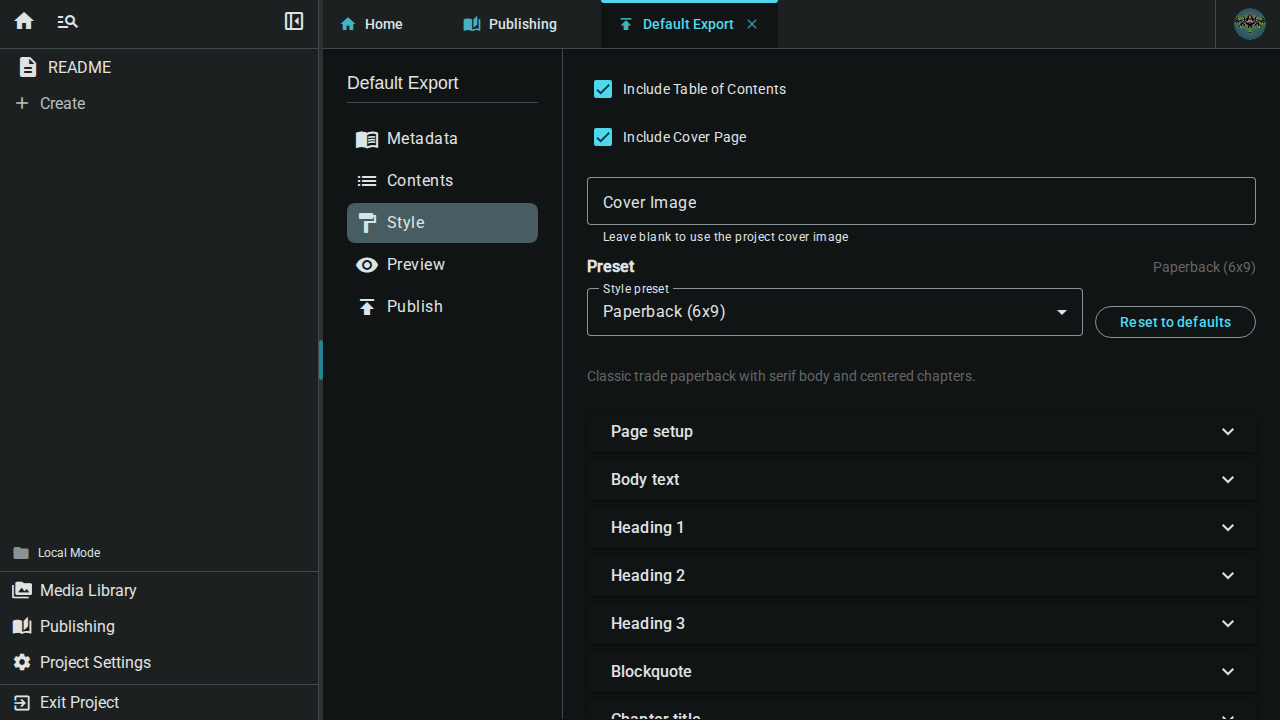
Presets
Start with a preset, then tweak anything you want. Six presets ship with Inkweld:
| Preset | Best for |
|---|---|
| Manuscript | Submission-ready double-spaced manuscript (Courier-style) |
| Paperback | Trade paperback novel — classic serif, justified body |
| Ebook | Reflowable EPUB optimized for e-readers |
| Web Serial | Web-friendly sans-serif with generous line height |
| Large Print | Accessibility-focused with bigger text and looser spacing |
| Reference | Non-fiction, worldbuilding wiki, or technical writing |
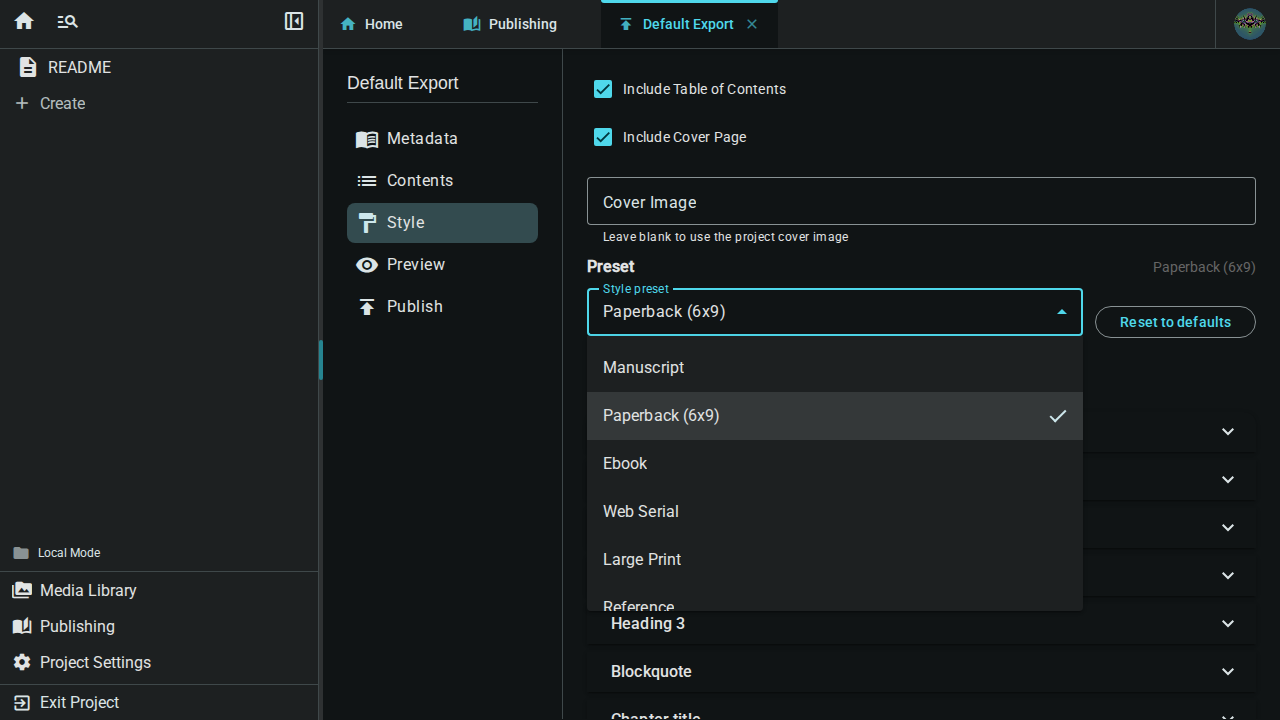
Pick a preset from the Preset dropdown. The active preset is shown next to the picker; if you change any individual setting the label switches to Custom so you always know whether your output matches a preset exactly.
Per-section overrides
Below the preset picker is a stack of collapsible sections. Each section controls one part of your book:
- Page — page-break-before-chapter toggle and other page-level options
- Body text — font, size, weight, alignment, line height, color, first-line indent
- Heading 1 / 2 / 3 — chapter-level and sub-section headings
- Blockquote — pull quotes and indented quotations
- Chapter title — the chapter heading style and whether each chapter starts on a new page
- Scene break — the visual marker between scenes within a chapter
- Worldbuilding entry title — when a worldbuilding element is included in the export
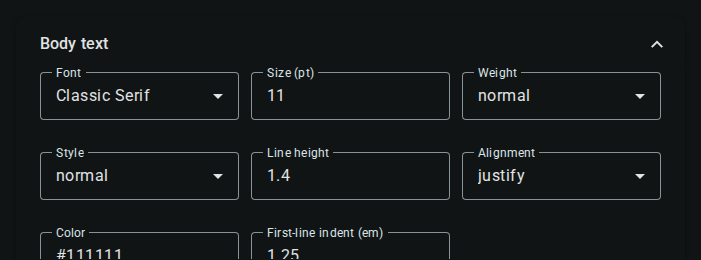
Every text section gives you the same controls:
| Control | What it does |
|---|---|
| Font | One of the curated font families (serif, sans-serif, monospace) |
| Size (pt) | Point size — used directly for PDF, scaled for HTML/EPUB |
| Weight | normal / bold |
| Style | normal / italic |
| Line height | Multiplier (1.0 = single, 1.5 = comfortable, 2.0 = double) |
| Alignment | left / center / right / justify |
| Color | Any hex color (e.g. #111111) |
| First-line indent (em) | Indent at the start of each paragraph; great for novels |
Chapter & scene break
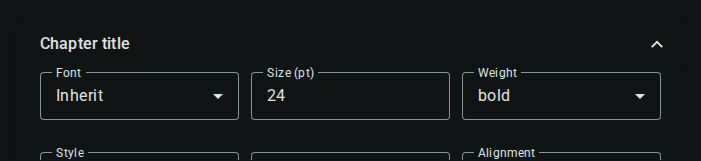
The Chapter title section adds a Start each chapter on a new page toggle. For PDF and EPUB this inserts a real page break; for HTML it's rendered as a CSS page break (visible when the reader prints or saves to PDF from the browser).
The Scene break section styles the marker shown between scenes — whether you want a centered ornament, three asterisks, or just extra whitespace.
Worldbuilding entries

When you add a worldbuilding element (character, location, etc.) to a publish plan, Inkweld renders it as a structured entry — a title heading followed by each defined field as a labeled bullet. The Worldbuilding entry title section lets you style the heading (the field labels and values inherit from Body text).
This is what powers the Reference preset for wiki-style worldbuilding compendiums.
Reset
Each section can be cleared back to its preset value, and the Reset to preset defaults button at the top restores the entire plan to its current preset.
Options
The Options section controls what's included:
| Option | Effect |
|---|---|
| Include Table of Contents | Adds a TOC page at the start |
| Include Cover Page | Adds your project cover image |
If "Include Cover Page" is enabled and you have a project cover set, it will be used. You can also specify a custom cover image URL.
Content order
Documents appear in your export in the order they're listed in the Contents section:
- Drag items to reorder
- Use the arrow buttons to move items up/down
- The TOC (if added) is typically placed first
Cover images
For cover images to appear:
- Set a project cover in your project settings (see Project Covers)
- Enable Include Cover Page in your publish plan options
The cover is embedded in EPUB exports and appears as a title page in PDF/HTML.
What you can't customize (yet)
A few things still aren't exposed in the Style editor:
- Custom fonts — you can choose from the curated font tokens, but you can't upload your own typeface
- Raw CSS — there's no escape hatch to inject arbitrary stylesheet rules
- Page size & margins — PDF currently uses sensible defaults per preset
These may be added in future versions.
Next: User Settings — Configure your personal preferences.