Quick Open
Quick Open lets you jump to any document in your project instantly using a keyboard shortcut and fuzzy search.
Opening Quick Open
Press the keyboard shortcut to open the Quick Open dialog:
| Platform | Shortcut |
|---|---|
| macOS | ⌘ + P |
| Windows | Ctrl + P |
| Linux | Ctrl + P |
Searching for Files
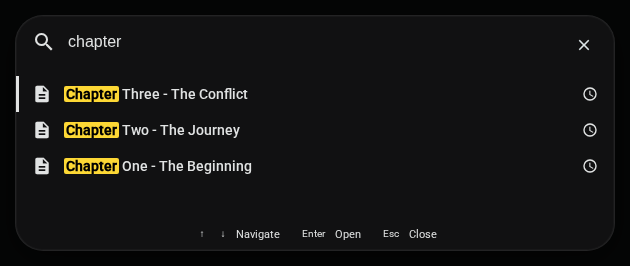
Start typing to search across all documents and worldbuilding elements in your project:
- Fuzzy matching — Type partial names like "chap" to find "Chapter One"
- Case insensitive — "INTRO" matches "Introduction"
- Match highlighting — Matching characters are highlighted in results
Recent Files
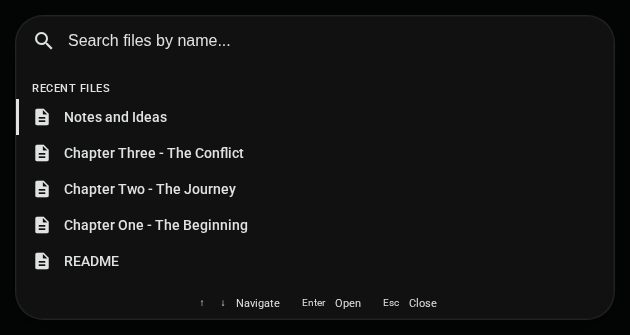
When you open Quick Open without typing anything, it shows your recently opened files first. This makes it easy to jump back to documents you were just working on.
Keyboard Navigation
Navigate the results without touching your mouse:
| Key | Action |
|---|---|
↑ ↓ | Move selection up/down |
Enter | Open the selected file |
Escape | Close Quick Open |
Tips
- Quick switching — Use Quick Open to rapidly switch between documents while writing
- Clear search — Click the × button or select all and delete to reset the search
- Recent files first — Your most recently opened files appear at the top when no search query is entered
:::tip Pro Tip
Quick Open is the fastest way to navigate large projects. Build muscle memory with ⌘/Ctrl + P and you'll rarely need to scroll through the project tree.
:::
Related: Project Search — search inside documents across your whole project with Ctrl/Cmd + Shift + F.