Element References
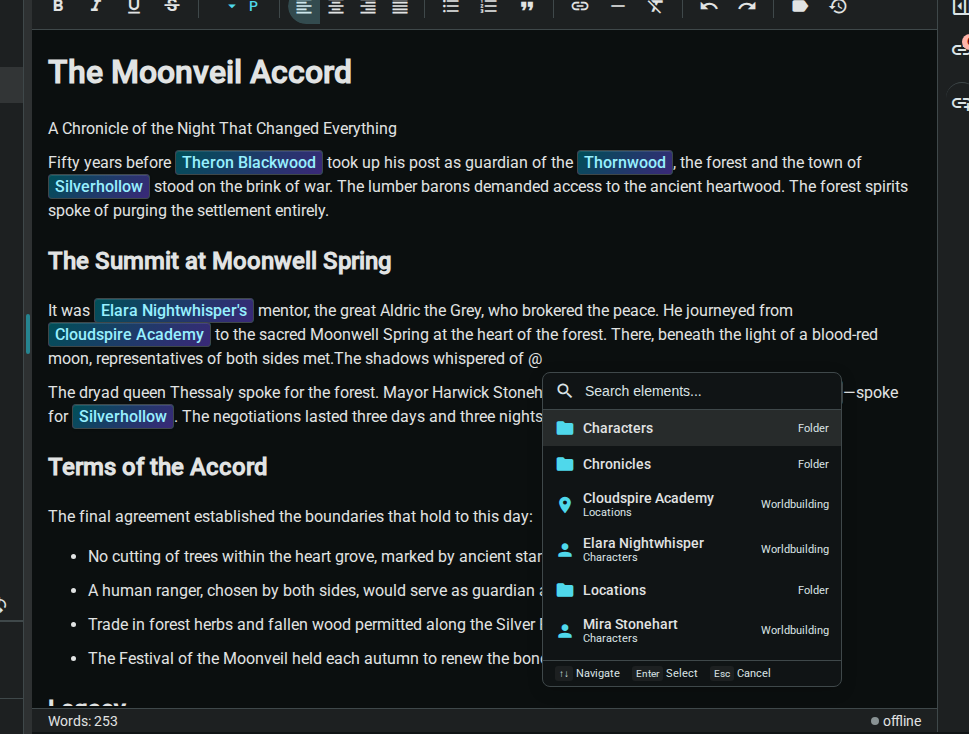
Element references let you create links between your story content. Use the @ symbol to reference any worldbuilding element from anywhere in your project.
Quick Start
- Type
@in any document - Start typing to search for an element
- Select from the dropdown or press Enter
- A styled link is inserted into your text
Why Use Element References?
Track Element Appearances
See everywhere an element is mentioned across your entire project. The Relationships Panel shows:
- References: Elements this document links to
- Backlinks: Other documents that reference this element
Navigate Your World
Click any element reference to jump directly to that element's page. Build a web of interconnected worldbuilding.
Maintain Consistency
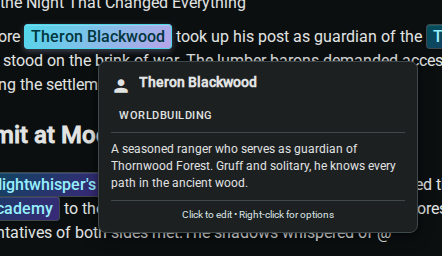
When you hover over an element reference, a tooltip shows key information about that element. Quickly verify details without leaving your current document.
Using the @ Popup
Searching
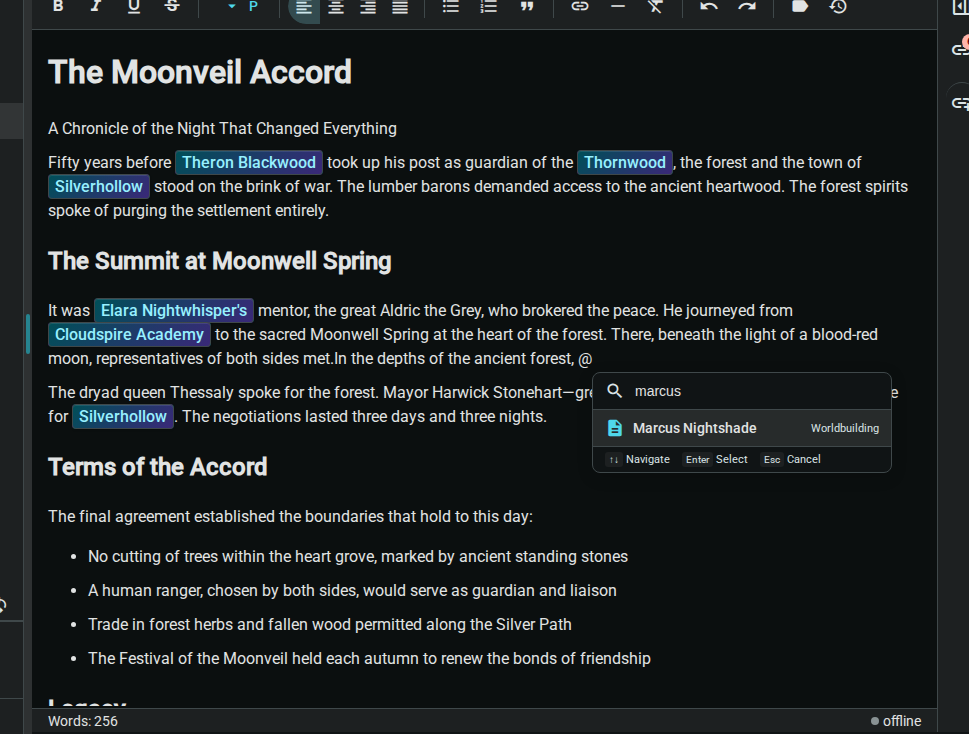
The popup shows your most recent/relevant elements by default. Start typing to filter:
- Type
@Elenato find elements named Elena - Type
@Tavernto find elements containing "Tavern" - Results are ranked by relevance and recency
Keyboard Navigation
| Key | Action |
|---|---|
↑ ↓ | Navigate through results |
Enter | Select highlighted result |
Escape | Close popup without selecting |
Tab | Select and continue typing |
Element Types
The popup shows icons based on the element's template. Common examples:
| Icon | Element Type (Template) |
|---|---|
| 📄 | Document |
| 📁 | Folder |
| ✨ | Worldbuilding entry |
Editing References
Context Menu
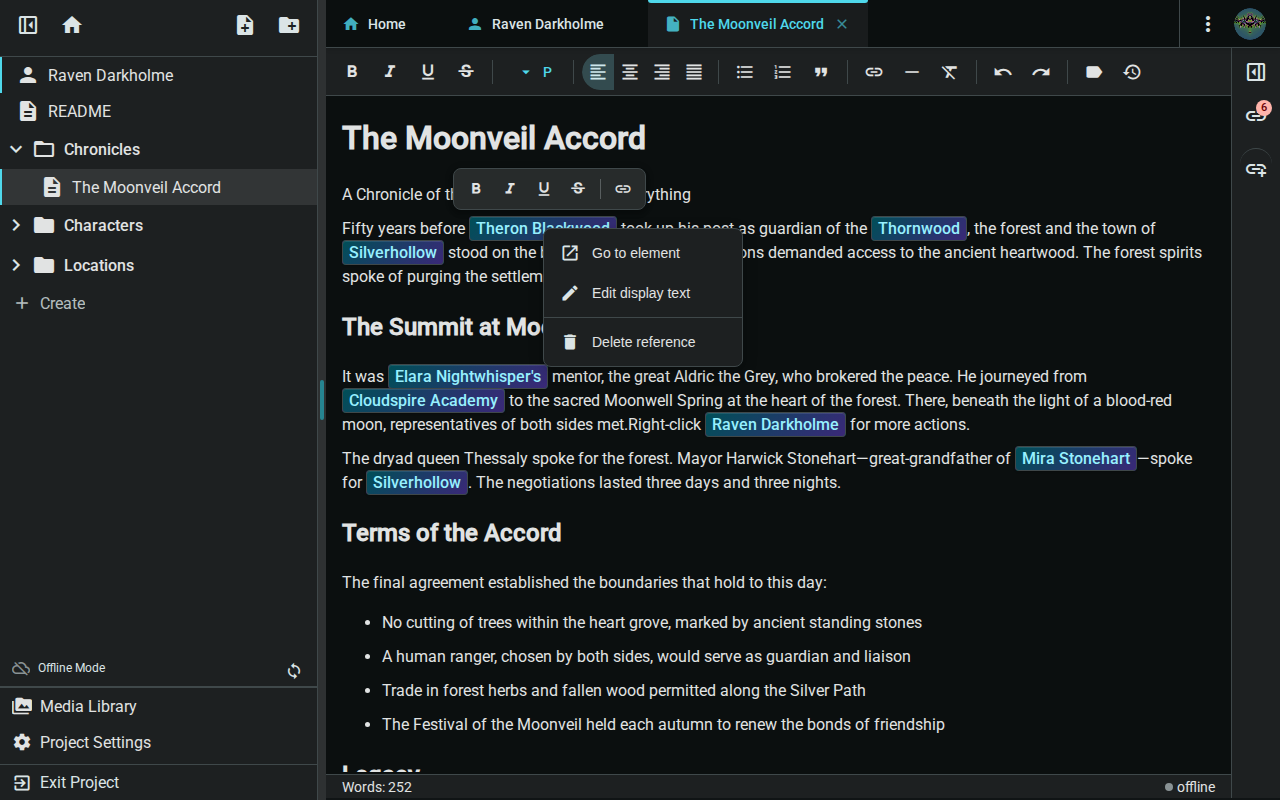
Right-clicking an element reference opens a context menu with options:
Change Display Text
By default, the element's name is shown. To use custom text:
- Right-click the element reference
- Select "Edit Display Text"
- Enter your preferred text
- Click Save or press Enter

Example: Change @Elena Blackwood to display as just Elena or the sorceress.
Remove a Reference
To remove an element reference:
- Place your cursor at the end of the reference
- Press Backspace to delete it as a single unit
Or:
- Right-click the reference
- Select "Remove Link" (keeps the text, removes the reference)
The Relationships Panel
The side panel shows all relationships for the current document:

References (Outgoing)
Elements that this document mentions. Click any reference to navigate to that element.
Backlinks (Incoming)
Other documents that reference the current element. Great for finding all scenes where an element appears.
Hover for Preview
Hover over any item in the Relationships Panel to see a preview tooltip with element details.
Tips & Best Practices
Create Elements First
Before writing a scene, create your worldbuilding elements. This makes them searchable via @ mentions.
Use Consistent Names
Keep element names consistent for easy searching:
- ✅
Elena Blackwood(full name) - ✅
The Silver Spoon Tavern(with article if part of name) - ❌
elenaorElena's tavern(informal variants)
Custom Display Text
Use display text to match your narrative voice:
- Reference:
@Elena Blackwood - Display: "the young sorceress" or "her mentor"
Track Mentions Across Scenes
Use backlinks to ensure consistency:
- Open an element's page
- Check the Relationships Panel
- Review all scenes where it appears
Troubleshooting
Popup Not Appearing
- Ensure you're in a text editor (not a title field)
- Check that your project has created elements to reference
- Try refreshing the page if elements were just created
Element Not Found
- Check the element exists in your project tree
- Try searching by partial name
- Verify the element type and name
Reference Not Clickable
- Click the reference directly (not the surrounding text)
- Check that the target element still exists in your project tree
- Try re-creating the reference if the element was renamed or moved